
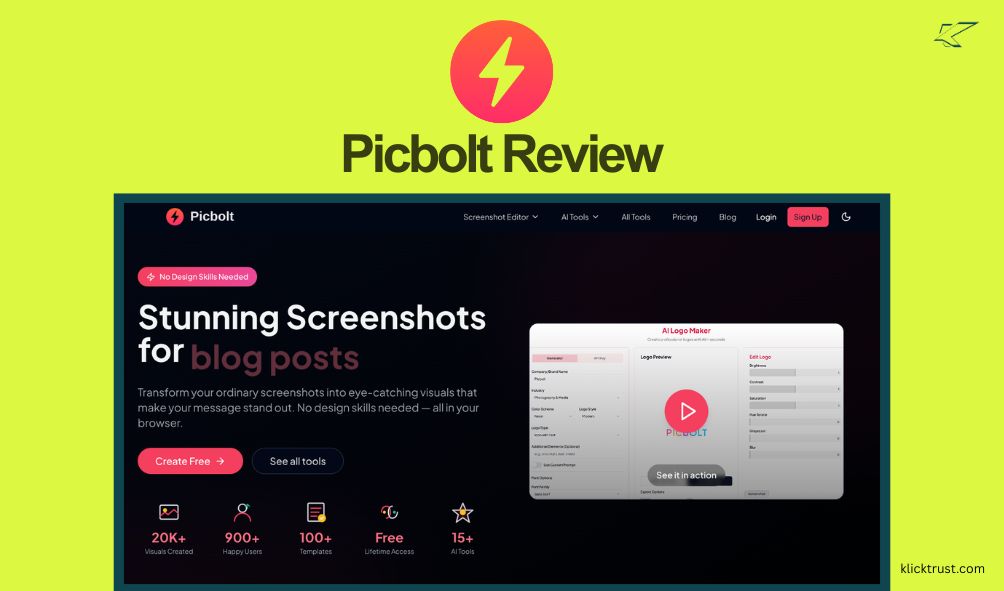
I once spent three hours trying to make a single screenshot look professional for a client presentation. I was juggling Photoshop layers, trying to add a fake browser window, and messing with drop shadows until my eyes crossed. It was a nightmare. That’s when I stumbled upon Picbolt, and it felt like someone had handed me a cheat code for graphic design. If you are tired of ugly screenshots ruining your hard work, this PicBolt review is exactly what you need to read. Let’s dive in and see if this tool can save you as much time as it saved me.
What Is Picbolt?
PicBolt is a browser-based design platform built to turn boring screenshots into stunning visuals. Think of it as a magic wand for your images. You don’t need to be a designer to use it. You don’t even need to download software.
It specializes in mockups. This means it takes your raw image—like a screenshot of your app or a tweet—and wraps it in a beautiful frame. It can look like it’s on an iPhone, a MacBook, or inside a clean browser window.
Beyond screenshots, it has evolved into a Swiss Army knife for creators. It includes tools for code snippets, social media posts, and even AI-generated logos. It’s designed for speed and simplicity, living right in your web browser.
Key Features and Benefits
Picbolt packs a lot of punch for a simple web tool. I’ve spent weeks digging through every button and setting. Here is a breakdown of the features that actually matter.
Screenshot Mockups
This is the bread and butter of the platform. You upload a raw image, and PicBolt instantly lets you add a wrapper around it. You can choose a browser style (like Chrome or Safari) or a specific device. You can also add nice backgrounds, like gradients or abstract shapes, to make the image pop.
Device Frames
If you are building a portfolio or an app store listing, you need this. Picbolt lets you place your image inside realistic devices. They have the latest iPhone models, MacBooks, and Android phones. It adds a layer of professionalism that makes it look like you hired a photographer.
Code Image Generator
Developers, you will love this. If you want to share a snippet of code on Twitter or a blog, Picbolt makes it look sexy. It adds syntax highlighting (colors for different code parts) and puts it in a nice window. It looks way better than a plain text paste.
Social Media Tools
PicBolt has specific tools for fake tweets, Reddit posts, and YouTube thumbnails. You can mock up a social media post to see how it looks before you hit publish. Or, you can create “fake” posts for a presentation to prove a point without needing a real account.
AI Tools
They have recently added a suite of AI features. This includes an AI logo maker and an icon generator. You do need your own OpenAI API key for some of these, but they are great for generating quick assets when you are stuck for ideas.
My Personal Experience with Picbolt
I want to be real with you about how I use this tool. I run a few niche websites, and I constantly need images for blog posts. Before Picbolt, my process was slow and painful.
Last week, I wrote a tutorial on how to use a specific software. I took about 20 screenshots. In the past, I would have just uploaded the raw, ugly images. They would have looked messy and cluttered.
With Picbolt, I uploaded all of them in a batch. I applied a “macOS Dark Mode” browser frame to all of them. Then, I added a soft blue gradient background. In less than ten minutes, I had 20 high-quality, uniform images. It made my blog post look like it belonged in a top-tier tech publication.
I also used the “Tweet to Screenshot” tool for a client report. I needed to show them some positive feedback they got on Twitter. Instead of a low-res screen grab, I pasted the tweet URLs into PicBolt. It gave me crisp, clean images of the tweets that looked amazing in the PDF report.
What Sets Picbolt Apart?
There are other tools out there, like Canva or Photoshop. So, why pick this one?
Speed vs. Complexity
Photoshop is powerful, but it is slow. You have to manage layers, exports, and huge file sizes. Picbolt is fast. You drag, drop, click, and download. It strips away the complex stuff you don’t need for simple screenshot work.
Browser-Based Convenience
You don’t need to install anything. I switch between my laptop and my desktop a lot. Because PicBolt is a website, my tools are always there. I just log in and go.
Niche Focus
Canva tries to do everything—flyers, videos, mugs. PicBolt focuses hard on tech visuals. The code highlighter and browser frames are better than what you find in generic design tools because they are built specifically for tech creators.
Pricing and Plans
Money matters, right? PicBolt keeps it pretty simple compared to the monthly subscriptions that drain your wallet.
The Free Plan
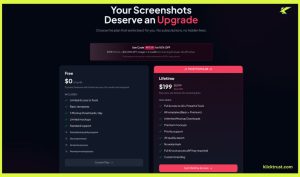
Yes, there is a free version. It’s actually quite generous. You can access basic tools and templates. However, you are limited to 3 mockup downloads per day. This is great for testing the waters or if you only need a quick image once in a while.
The Lifetime Deal
This is where the real value is. PicBolt offers a “Lifetime” plan for a one-time payment of $199.
- No monthly fees: You pay once, and you own it forever.
- Unlimited downloads: No more daily caps.
- Premium access: You get all the device frames, 4K export quality, and no watermarks.
- AI Access: It includes access to the AI tools (though you might need your own API key for the heavy lifting).
Compared to paying $15 a month for other tools forever, the one-time payment pays for itself in about a year.
Pros and Cons
Nothing is perfect. Here is the good, the bad, and the ugly based on my time with the tool.
Pros
- Dead Simple: Zero learning curve. If you can click a mouse, you can use it.
- No Watermarks: Even on some free exports, you can get clean images.
- Lifetime Pricing: I hate subscriptions. Paying once is a huge win.
- Fast: It loads quickly and processes images instantly.
- Versatile: It handles code, social media, and screenshots all in one place.
Cons
- AI Costs: For some advanced AI features, you need your own OpenAI API key. This is an extra cost and a bit of technical setup.
- Refund Policy: Refunds are strict. They usually only give money back for technical issues, not just because you changed your mind.
- Mobile Use: It works best on a desktop. Editing detailed screenshots on a phone screen is a bit fiddly.
Who Is Picbolt For?
I’ve thought a lot about who gets the most bang for their buck here.
Content Creators and Bloggers: If you write tutorials or reviews, this is a must-have. It makes your content look authoritative and keeps readers on the page longer.
Developers: If you share code on Twitter or write documentation, the code image tool is fantastic. It makes your work look neat and readable.
Social Media Managers: You can create consistent, branded visuals for every post. The “fake tweet” tool is also great for making memes or engagement bait.
Indie Hackers and Founders: If you are building an app, you need pretty screenshots for Product Hunt or the App Store. PicBolt lets you make them without hiring a designer.
How to Get Started with Picbolt
Ready to try it? It’s super easy. Here is a quick guide to get you going.
- Go to the Website: Head over to Picbolt.co.
- Sign Up: Click the “Sign Up” button. You can create a free account in seconds.
- Choose a Tool: On the dashboard, click “Screenshot Mockup.”
- Upload: Drag your screenshot onto the canvas.
- Edit: Use the sidebar to pick a frame (like a browser window) and a background color.
- Download: Click the “Export” button at the top right. Choose PNG or JPG.
- Done! You now have a pro-level image ready to use.
Frequently Asked Questions
Is Picbolt free to use?
Yes, there is a free plan. It allows you to use basic templates and tools. However, you are limited to 3 downloads per day.
Do I need to install anything?
No. PicBolt works entirely in your web browser. You can use it on Chrome, Safari, or Firefox.
Can I use the images for commercial work?
Yes! You own the images you create. You can use them for client work, websites, or products you sell.
What is the refund policy?
They offer a free plan to test the tool. Refunds for paid plans are generally only given if the tool is broken or not working technically.
Does it work on mobile?
Yes, the website is responsive. However, for the best experience with detailed editing, a laptop or desktop computer is better.
How do the AI tools work?
PicBolt has built-in AI interfaces. For some high-end features, you will need to plug in your own API key from OpenAI. This keeps costs low for the lifetime deal.
Final Verdict
To wrap up this PicBolt review, I have to say I am impressed. It solves a very specific problem—ugly screenshots—and it solves it well. It is not a replacement for Photoshop for deep design work. But for the 90% of tasks where you just need a clean, professional image for a blog or social post, it is a lifesaver. The lifetime deal makes it a no-brainer for anyone who hates monthly subscriptions. It is fast, easy, and makes you look like a pro designer with zero effort.
If you are on the fence, go try the free version. Make one mockup. I bet you’ll see exactly why I use it every single week.

Hi, I am the founder of KlickTrust. I’m a digital strategist and builder with a deep passion for creating systems that help people build faster online. I started KlickTrust to save creators, freelancers, and entrepreneurs from wasting months starting from scratch by giving them access to practical, ready-to-use digital tools, templates, and automation systems that actually work in the real world.
At KlickTrust, I focus on speed, trust, and empowerment, so you can launch, grow, and scale with confidence.

