

I remember the first time I tried to find my Google Business Profile. I clicked around for 20 minutes, got lost in different pages, and almost gave up. Then I realized it was actually simpler than I thought. Today, I want to walk you through exactly how to access your Google Business Profile so you don’t waste time like I did. Your business listing is waiting for you, and once you’re in, you can manage everything that helps customers find you online.
Why Your Google Business Profile Matters More Than Ever
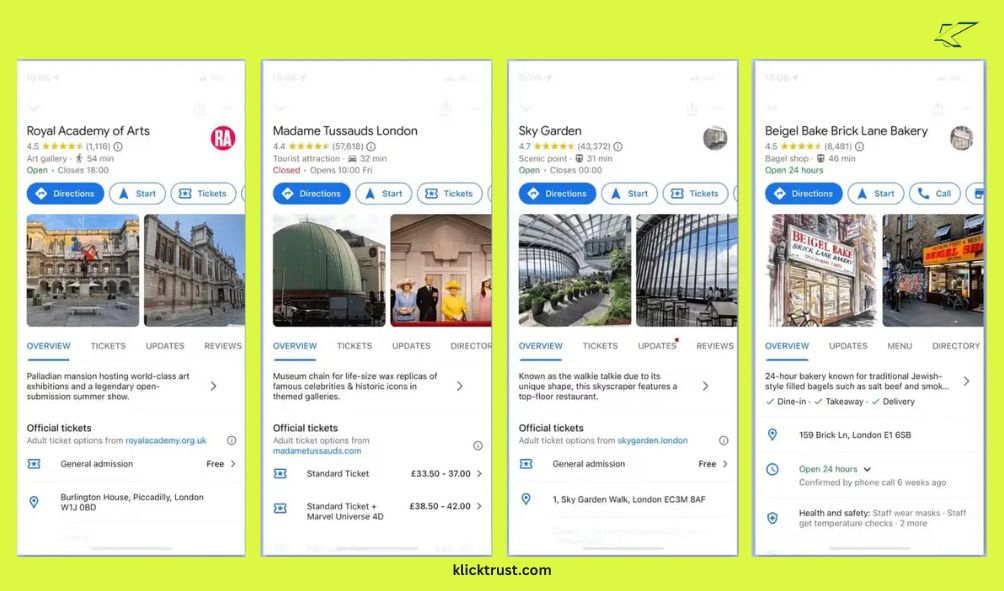
Before we dive into how to access your profile, let me explain why this matters. Your Google Business Profile is your digital storefront. When someone searches for your business on Google or looks you up on Google Maps, they’re seeing your profile. It shows your hours, your location, your phone number, and reviews from real customers.
Think about it. 86% of customers use Google Maps to search for businesses located near them. That’s not a small number. That’s most of your potential customers. If your profile is missing information or hard to access, you’re losing business to competitors who have their act together.
Your Google Business Profile also helps with local search. When someone searches “plumber near me” or “coffee shop open now,” Google uses your profile to decide if your business shows up. The better your profile, the more visible you are.
How to Access Your Google Business Profile: The Basic Steps
Let’s get you into your profile. This is the most straightforward way, and it takes about two minutes.
Step 1: Go to Google Business
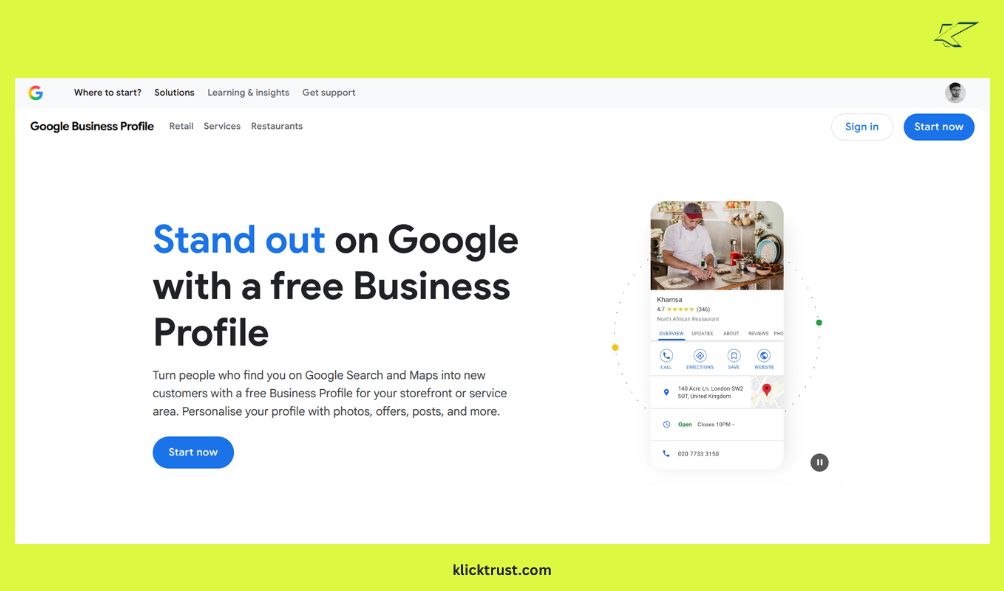
Open any web browser and go to business.google.com. You’ll see a page with a login option in the top right corner. Click “Sign In” or “Manage now.”
Step 2: Sign In With Your Google Account
You need to be logged into the Google account that owns your business profile. Make sure you’re using the right account. If you have multiple Google accounts, pick the one connected to your business. If you don’t know which one, try the most obvious choice first—usually the email you used when setting up the business.
Step 3: Find Your Business
After you sign in, you’ll see your business profile dashboard. If you only have one business, it will show up automatically. If you manage multiple businesses, you’ll see a list. Type your business name in the search bar to find the one you want to access.
Step 4: Access Your Profile
Once you find your business, click “See your profile” or “See your profile on Google.” This takes you to the main management area where you can edit information, manage reviews, add photos, and do everything else.
That’s it. You’re now inside your Google Business Profile and can start managing your business information.
If Someone Else Created Your Business Profile
Here’s a situation many business owners face. Someone else created the Google Business Profile for your business. Maybe it was an old employee. Maybe it was an agency. Maybe a customer created one for you. Now you can’t access it.
Don’t panic. Google has a system for this. You can request access.
Step 1: Search for Your Business
Go to business.google.com and log in with your Google account.
Step 2: Click “Request Access”
If you find your business listed but you don’t have access to it, you’ll see a “Request Access” button. Click it.
Step 3: Fill Out the Access Request Form
Google will ask you some questions. They want to know who you are, what your relationship is to the business, and what type of access you need (management or ownership). Answer honestly. The current owner will see this information.
Step 4: Wait for Approval
The current profile owner gets an email notification. They have about a week to review your request and approve it. If they approve, you’re in. If they deny it, Google lets you appeal the decision with proof that you own the business.
This process protects business owners from unauthorized access. It’s annoying if you’re locked out, but it’s actually a good security measure.
The Mobile App Alternative
You can also access your Google Business Profile from your phone using the Google Business mobile app. Download it from the Apple App Store or Google Play Store.
The app shows you the same information as the desktop version. You can respond to reviews, add photos, update your hours, and manage everything on the go. Many business owners prefer this because they can update their profile right from their phone during the day.
The process is the same. Log in with your Google account and find your business. The interface is simplified for mobile, which makes it even easier to navigate.
Verification: Proving It’s Really Your Business
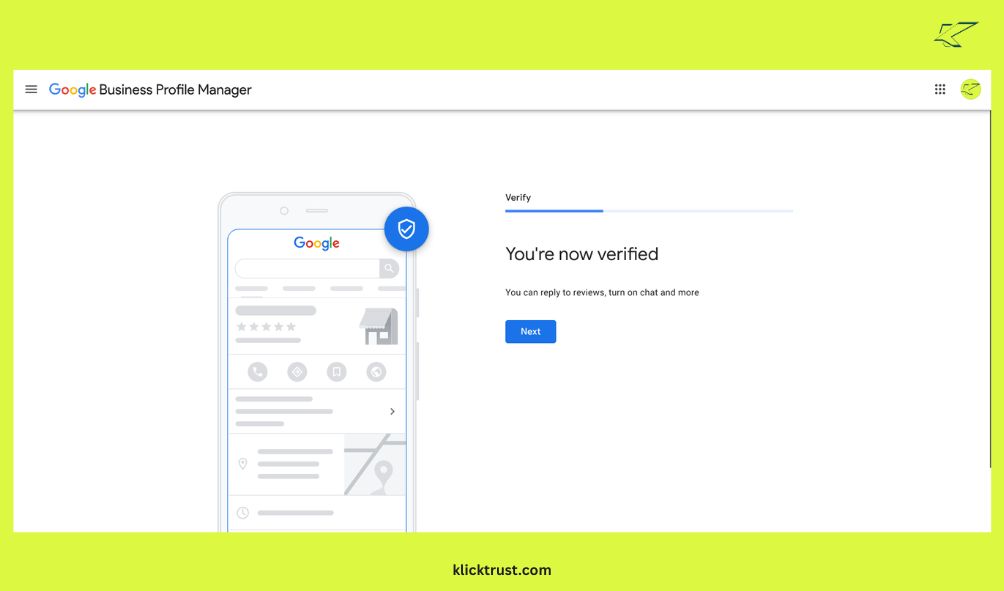
When you first set up your Google Business Profile or request access, Google wants to make sure you actually own the business. They do this through verification.
Postcard Verification is the most common method. Google sends a postcard to your business address with a unique code. When you get it, you enter that code into your profile. This proves you have access to the business location.
Phone Verification is faster. Some businesses can verify by phone. Google calls or texts you with a code. You enter it into your profile. Done.
Email Verification works for certain business types. Google sends a code to an email address associated with your business domain.
Video Verification is the newest option. You record a short video showing your business. This could be your storefront, your sign, or the interior. This instant verification works great for businesses that need quick access.
Most business owners use the postcard method because it works for any business type. Just be patient. It takes about a week to arrive.
Managing Your Profile Once You’re Inside
Now that you can access your profile, what can you do? Let me show you the main features.
Edit Business Information is where you update your name, address, phone number, hours, and website. Keep this accurate. Customers rely on it. If your hours change or you move locations, update it immediately.
Respond to Reviews is crucial. Customers leave reviews on your profile. You can read them and respond. Always respond professionally. Thank people for good reviews. Address complaints politely. This shows you care about customer feedback.
Add Photos and Videos help customers trust you. A plumbing business that shows their work gets more calls than one with no photos. A restaurant that shows their food gets more customers. Upload high-quality, clear images that represent your business well.
Create Posts to share updates. You can announce a new service, promote a special offer, or share news about your business. Google shows these posts right on your profile.
Monitor Insights to see how customers find and interact with your profile. You can see what search terms bring people to you. You can see how many people viewed your profile. You can see how many people clicked your website link or called your phone number.
All these features help you grow your business and stay connected with customers.
Troubleshooting: When You Can’t Access Your Profile
Sometimes things go wrong. You can’t remember your password. You get locked out. Here’s what to do.
Forgot Your Password? Click “Forgot password?” on the login page. Google will send you a reset link to your email. Click it, create a new password, and you’re back in.
Can’t Find Your Business? Your business might already have a profile you don’t know about. Search your business name on Google Maps. If you find it, use the “Request Access” process we talked about earlier. If you don’t find it anywhere, click “Add your business” and create a new one.
Locked Out by Someone Else? If someone has taken over your profile and won’t give you access, contact Google Support. You’ll need to prove you own the business with documents like business licenses, tax records, or lease agreements. Google takes this seriously and will help you regain control.
Not Receiving Verification Code? Check your spam folder if you’re waiting for an email. If you’re waiting for a postcard, make sure the address on file is correct. Wait the full week before contacting Google. Postal mail takes time.
Important: Use the Right Google Account for Your Business
Here’s a mistake I see often. A business owner creates a Google Business Profile using their personal Gmail account. Then they leave the company or change jobs. The profile is stuck with that account.
Best practice. Create a separate Google account just for your business. Use an email like business@yourcompanyname.com or owner@yourcompanyname.com. This keeps everything professional and organized. If someone on your team changes jobs, you can transfer the profile to a different account.
If you’ve already set up your profile with a personal account, you can transfer ownership later. It’s not difficult, but it’s easier to get it right from the start.
Managing Multiple Business Locations
If you own multiple locations, you can manage them all from one dashboard. Each location gets its own profile, but you can access all of them from the same Google account.
When you log in, you’ll see a list of all your locations. Click the one you want to manage. Update the information for that specific location. This is powerful for larger businesses or franchises. Each location has its own hours, address, phone number, and reviews, but you manage them all from one place.
Connect Your Google Business Profile to Your Marketing
Your Google Business Profile works best when it’s connected to the rest of your business. Make sure your business name, address, and phone number are the same everywhere. Your website, social media, Google Maps, and your profile should all have matching information. This consistency helps both customers and Google understand that you’re a real, legitimate business.
Also, if you’re a business owner managing your own finances and taxes, keeping organized records of all your business expenses helps you file your taxes correctly. Speaking of taxes, if you haven’t already, check out our complete guide on how business tax write-offs work. Understanding deductions like home office expenses and business equipment can save you thousands at tax time. The same organization you use for your Google Business Profile—keeping everything accurate and up to date—also helps when it’s time to claim your business tax deductions.
The Bottom Line
Accessing your Google Business Profile is simple once you know where to go. Visit business.google.com, sign in with the right Google account, find your business, and you’re in. If someone else created your profile, request access and wait for approval. Once inside, keep your information accurate, respond to reviews, and add photos.
Your Google Business Profile is how customers find you in 2025. It’s how Google knows you’re a real business in your area. It’s how you build trust with potential customers. Make sure you have access to it. Make sure it’s complete and accurate. Update it regularly.
Take action today. Go to business.google.com right now and make sure you can access your profile. If you can’t, follow the request access steps. If you can, spend the next 30 minutes updating your information, adding photos, and responding to any reviews. That’s 30 minutes of work that could bring you new customers this month.
FAQs:
Q: What’s the difference between Google Business Profile and Google Maps?
A: Your Google Business Profile is the management tool. Google Maps is where customers see it. They’re connected. You manage the profile, and customers find you on Maps.
Q: Can I access my profile from my phone?
A: Yes. Download the Google Business mobile app on iOS or Android. Log in with your Google account and manage everything from there.
Q: How long does verification take?
A: Postcard verification takes about a week. Phone verification is instant. Email and video verification vary but are usually faster than postcard.
Q: Can multiple people access the same profile?
A: Yes. You can add owners and managers. Owners can manage access, while managers can edit information and respond to reviews but can’t change who has access.
Q: What if my business doesn’t have a physical location?
A: Service area businesses can still have a profile. Instead of an address, you list the areas you serve. Customers search for you in those areas.
Q: Do I need a website to have a Google Business Profile?
A: No. Your profile works independently. But a website helps customers learn more about you. They’re more powerful together than apart.

Hi, I am the founder of KlickTrust. I’m a digital strategist and builder with a deep passion for creating systems that help people build faster online. I started KlickTrust to save creators, freelancers, and entrepreneurs from wasting months starting from scratch by giving them access to practical, ready-to-use digital tools, templates, and automation systems that actually work in the real world.
At KlickTrust, I focus on speed, trust, and empowerment, so you can launch, grow, and scale with confidence.

