
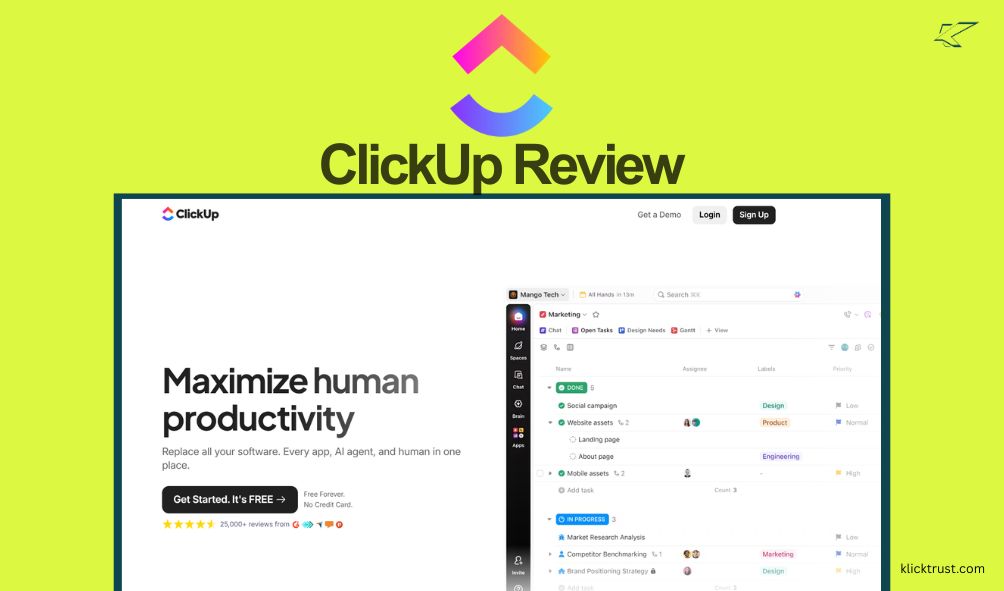
I used to drown in sticky notes. Seriously. My desk looked like a papier-mache project gone wrong. I had tasks in a notebook, deadlines on my phone calendar, and client notes buried in email chains. It was a mess. Then I found project management software. Today, I’m diving into a deep ClickUp review to see if it lives up to the hype.
I have tested this tool for months so you don’t have to. I wanted to see if their bold claim—that they can save you one day a week—is actually true or just marketing fluff. We are going to look at the features, the pricing, and the headache-inducing learning curve.
If you are tired of switching between five different apps just to finish one project, this review is for you. Let’s see if ClickUp is the productivity savior you have been looking for.
What is ClickUp?
You might have seen their ads. They are everywhere. But what actually is this tool?
Think of ClickUp as a Swiss Army knife for your work. Most tools do one thing well. Trello does boards. Google Docs does writing. Slack does chat. ClickUp tries to do all of that in a single tab. It is a cloud-based productivity platform designed to be the “one app to replace them all.”
It is built for everyone. I mean that. It works for solo freelancers who need to organize their day. It works for massive enterprise companies managing thousand-person teams. The goal is simple: stop the “context switching.” That is the fancy term for losing focus because you have to toggle between different apps. ClickUp puts your docs, your tasks, your goals, and your chat in one bucket.
Getting Started with ClickUp
I will be honest with you. The first time I logged in, I felt stupid.
There are buttons everywhere. There are colors everywhere. It is not as simple as opening a fresh notebook. But once you get past that initial shock, setting it up is actually logical. Here is how I recommend you handle the first hour.
Step 1: The Sign-Up
You go to their site and sign up. It’s easy. You can use your Google account. They will ask you what you want to use it for. Be honest here. It helps them hide the features you don’t need yet.
Step 2: The Hierarchy
This is the part that trips people up. ClickUp is organized like a file cabinet.
- Workspace: This is your entire company.
- Space: These are your departments (like “Marketing” or “Sales”).
- Folder: This groups your projects (like “Blog Posts”).
- List: This is where your actual tasks live.
Step 3: Keep It Simple
When you create your first Space, ClickUp asks which “ClickApps” you want to turn on. These are features like time tracking, priorities, or email. My advice? Turn most of them off. You can always turn them on later. If you turn everything on at once, you will get overwhelmed. Start with a simple List view and add complexity later.
Key Features and Benefits
Okay, let’s get into the meat of this ClickUp review. What can this thing actually do? The short answer is: almost everything. But here are the features that actually matter for your daily workflow.
Task Management
This is the core. You create a task, give it a due date, and assign it to someone. Simple, right? But ClickUp goes deeper. You can break tasks down into subtasks. You can add checklists within tasks.
You can even add “Custom Fields.” This is huge. If you are a content writer, you can add a dropdown menu for “Draft Status” or a star rating for “Priority.” It lets you build a database that fits your specific job.
Views (So Many Views)
Most tools force you to work their way. ClickUp lets you work your way. You can look at the same set of tasks in different ways:
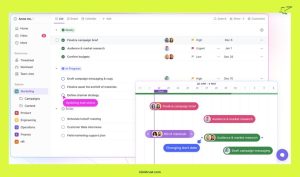
- List View: Looks like a standard to-do list.
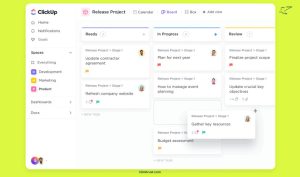
- Board View: Looks like Trello. Good for moving tasks through stages.
- Calendar View: Good for seeing deadlines.
- Gantt Chart: Essential for project managers who need to see timelines and dependencies.
- Table View: Looks like an Excel spreadsheet.
Docs and Whiteboards
This is where the “replace them all” claim comes in. You can create documents right inside ClickUp. They act just like Google Docs. You can tag your team members, leave comments, and—this is the cool part—link a Doc directly to a Task. No more hunting for the file.
They also have Whiteboards. If you like visual brainstorming, you can draw flows and diagrams. Then, you can turn a sticky note on your whiteboard into a real task with one click. It is super smooth.
ClickUp Brain (The AI)
Everyone has AI now, right? ClickUp Brain is actually useful, though. It is not just for writing emails. It connects your tasks and docs. You can ask it, “What did I work on last week?” and it will generate a summary.
You can use it to summarize long comment threads. If your team has been arguing about a design for three days, the AI can read the thread and give you the bullet points. It saves a lot of reading time.
My Personal Experience with ClickUp
I want to share a real story from my time using this tool.
I manage a content calendar. Before ClickUp, I had a spreadsheet for dates and a separate Word doc for the actual articles. I was constantly switching back and forth. I moved everything to ClickUp.
I set up a “Board View” for the status of the articles (Ideas -> Writing -> Editing -> Published). Then, I used the “Calendar View” to see when they were going live.
The Win:
The “Everything View” changed the game for me. It allows you to see tasks from every single list in your entire workspace. I could see my personal to-dos mixed with my work deadlines in one single list. I stopped missing the small stuff.
The Struggle:
It wasn’t all sunshine. The mobile app used to be incredibly slow. It has gotten better in the last year, but it can still feel a bit clunky compared to the desktop version. Also, the sheer number of notifications can be annoying. You have to spend time tweaking your settings, or your phone will buzz every 5 minutes.
ClickUp Pricing
Let’s talk money. Is it worth the cash? ClickUp has a few tiers, and they are pretty competitive.
Free Forever Plan
This is the best free plan in the industry. Period. You get unlimited tasks and unlimited members. Most competitors charge you once you add a second person. ClickUp doesn’t.
- Best for: Solo users or freelancers who are just starting.
- The Catch: Storage is limited. You also can’t use some advanced features like certain automations or the email feature.
Unlimited Plan
Cost: Around $7 per user/month (billed yearly).
This removes the storage limits. It unlocks guests with permissions, which is great if you work with freelancers. You also get unlimited dashboards.
- Best for: Small teams who need to share files and track time.
Business Plan
Cost: Around $12 per user/month (billed yearly).
This is the sweet spot for most companies. You get advanced time tracking, workload management (so you don’t burn out your team), and more security features.
- Best for: Mid-sized teams who need to manage resources and complex timelines.
Enterprise Plan
Cost: Custom pricing (usually around $400+ per user/year, based on data, but you have to talk to sales).
This is for the big players. You get a dedicated success manager, white labeling, and massive API limits.
- Tip: If you are buying this, negotiate. Don’t pay the sticker price. Ask for a multi-year deal or bundle in the AI costs.
ClickUp Brain (AI)
This is an add-on. It usually costs an extra $5 to $7 per member per month. If you write a lot or manage a lot of data, it pays for itself.
Pros and Cons
I promised an honest ClickUp review, so here is the good and the bad.
The Pros:
- All-in-One: You really can cancel other subscriptions.
- Customization: You can make it look exactly how you want.
- The Free Plan: It is generous and actually usable.
- Frequent Updates: The team releases new features constantly.
The Cons:
- The Learning Curve: It is steep. You will need to watch tutorials.
- Feature Overload: It can feel cluttered if you don’t turn off what you don’t use.
- Speed: Because it does so much, it can sometimes lag, especially on older computers.
Who is ClickUp For?
Shortly, it is not for everyone.
ClickUp IS for you if:
- You are a project manager who loves control.
- You run a marketing agency or a dev team.
- You are a “Type A” personality who loves organizing every detail of your life.
- You want to save money by consolidating tools.
ClickUp is NOT for you if:
- You just want a simple grocery list app. Use Todoist or Apple Notes.
- You are intimidated by tech. This tool requires setup time.
- You prefer pen and paper. This will drive you crazy.
Alternatives to ClickUp
Maybe this review made you realize ClickUp isn’t the one. That is okay. Here are the other big players.
Monday.com
Monday is very visual. It is great for high-level tracking. If you are in sales or operations, you might like the spreadsheet feel of Monday better. But like Asana, the pricing can get steep quickly.
Asana
Asana is prettier. It feels nicer to use. But it is less customizable. It is great for general project management, but it doesn’t have the deep document integration that ClickUp does. It is also usually more expensive for the features you get.
Trell0
If you just want a Kanban board (columns with cards), stick with Trello. It is dead simple. You can’t mess it up. But it lacks the power for complex projects.
Notion
Notion is a blank canvas. It is better for writing and wikis (knowledge bases). But for actual “Task Management” (dates, reminders, recurring tasks), ClickUp is much more powerful out of the box. Notion requires you to build the system yourself.
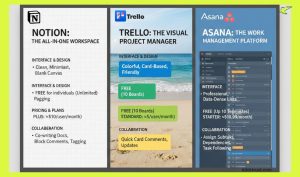
Click to get the comparisons about Asana VS Trello VS Notion
My Final Recommendation
After months of testing, here is my verdict.
ClickUp is the most powerful tool for the price. It is messy at first. It takes a weekend to learn. But once you set it up, it runs your life. The “Free Forever” plan is so good that there is literally no risk in trying it.
If you are serious about scaling your business or just organizing your chaotic freelance life, ClickUp is a solid bet.
FAQs
Is ClickUp really free?
Yes. The “Free Forever” plan is not a trial. You can use it forever. You only pay if you need unlimited storage or advanced features like “Portfolios.”
Is ClickUp hard to learn?
I won’t lie. Yes. It has a learning curve. Expect to spend a few hours watching YouTube tutorials to understand the hierarchy.
Is my data secure?
Yes. They are SOC 2 compliant and ISO certified. They take security seriously, which is important since you are putting your whole business in there.
Can I use it offline?
Sort of. The offline mode is okay for viewing tasks, but it is not perfect. You really need an internet connection to get the most out of it.
Conclusion
ClickUp aims high. It wants to replace every app in your dock. Does it succeed? Mostly. It replaces Trello and Asana easily. It replaces Google Docs for internal stuff. It hasn’t replaced Slack for me yet, but it’s close.
If you are ready to stop drowning in sticky notes and open tabs, give it a shot. Start with the free plan. Take it slow. Your future organized self will thank you.
[Sign up for ClickUp for free here]

Hi, I am the founder of KlickTrust. I’m a digital strategist and builder with a deep passion for creating systems that help people build faster online. I started KlickTrust to save creators, freelancers, and entrepreneurs from wasting months starting from scratch by giving them access to practical, ready-to-use digital tools, templates, and automation systems that actually work in the real world.
At KlickTrust, I focus on speed, trust, and empowerment, so you can launch, grow, and scale with confidence.

