
You’re taking your 50th screenshot of the day and you realize you’ve wasted 10 minutes just organizing and sharing them.
That’s when you hear about CleanShot X. Everyone on Reddit says it’s amazing. Your designer friend won’t stop talking about it. You wonder if it’s actually worth the money or just another tool people hype up because they got a discount code.
So I tested it for 90 days. I took hundreds of screenshots, recorded dozens of videos, and compared it to every other screenshot app I could find. Here’s what actually happened.
What Is CleanShot X? (And Why Should You Even Care?)
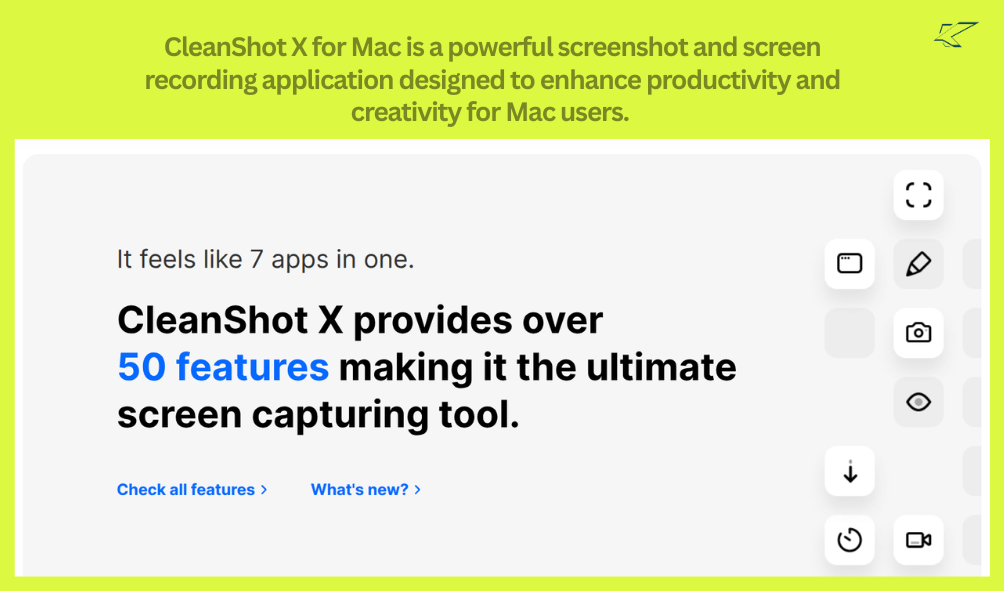
CleanShot X is a Mac screenshot and screen recording application that does one thing really well: it gets out of your way and lets you capture what you need without the headache.
But here’s the thing – there are tons of free tools that do screenshots. Why would anyone pay for this?
Because when you take 20+ screenshots a day, the small frustrations with free tools add up. Slow performance. Clunky editing. Sharing links that expire. Missing features you didn’t know you needed.
CleanShot X removes those paper cuts. That’s really what this is about.
The Problem With Free Screenshot Tools (And Why I Started Looking for Something Better)
I used Lightshot for years. It was free. It worked. But every time I needed to edit a screenshot or share it with a client, I felt like I was fighting the tool instead of using it.
Shottr came along and fixed some of that. But I still found myself frustrated when I needed to record a quick screen video or capture a really long webpage. The free tools could do it, but barely.
Then one day I realized: I was spending 30-40 minutes a week fighting with screenshot tools when I could have been doing actual work.
That’s when I decided to actually invest in a real tool instead of just using whatever was free.
My Real Experience: 90 Days of Using CleanShot X Every Single Day
I’m not a tech reviewer. I’m just someone who takes screenshots for blog posts, tutorials, client work, and random documentation all day long. Here’s what I actually noticed when I switched.
The Stuff That Blew Me Away
Screenshots appear instantly This isn’t just “fast.” This is genuinely “I didn’t even realize it was done” fast. The built-in Mac tool feels slow now. Lightshot feels ancient. CleanShot X just works.
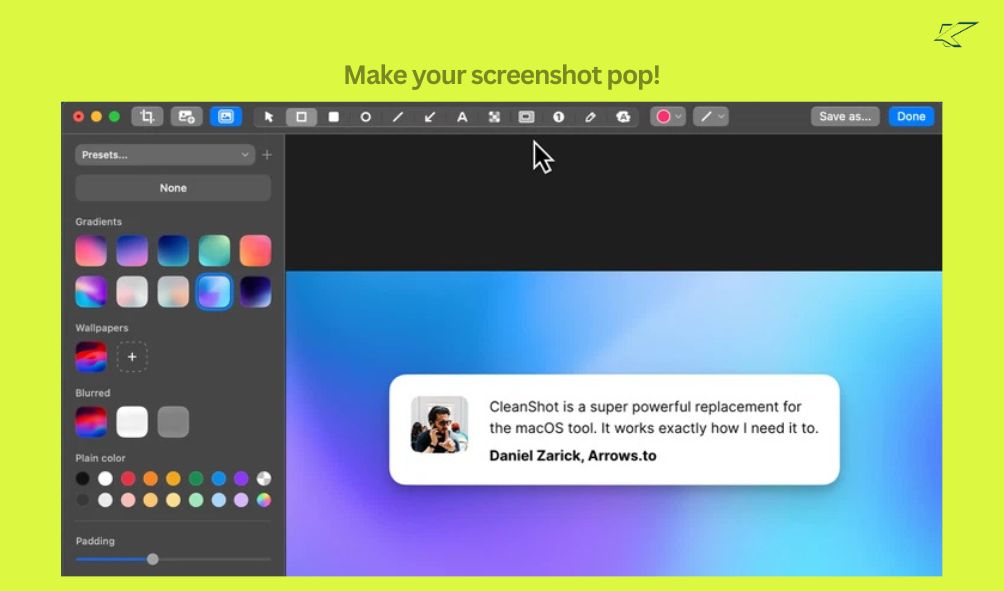
Editing feels natural You take a screenshot and a panel appears with all the tools you need. Blur something. Draw an arrow. Highlight text. Highlight a button. Add a number. It’s all there and it works how your brain expects it to work.
Cloud sharing that actually helps you get stuff done You screenshot something, it uploads automatically, you get a link, you copy it, you send it. That’s it. No attaching files. No emailing. No uploading to a service you barely remember the password to. Just a link.
For anyone who shares visual feedback for a living, this saves so much friction.
Long screenshot capture that actually works You know how you need to screenshot an entire webpage or a long chat conversation? Most tools mess this up. CleanShot X does it and it actually captures the full thing correctly. This alone was worth testing it.
Screen recording without the complexity QuickTime is terrible for this. Screen recording software is usually way too complicated. CleanShot X records your screen, the video looks clean, the file size is reasonable, and you can edit it right there if you need to.
One clever little feature: hide your desktop before recording Before you record, it can clean up your entire desktop automatically. No manually hiding files or embarrassing browser tabs. Your recording looks professional. This detail shows someone actually thought about real use cases.
The Annoying Parts (Because Nothing’s Perfect)
Your videos get deleted automatically and nobody tells you This is the feature that frustrated me the most. By default, if you save videos to the cloud, they get deleted after 24 hours. I lost some recordings before I figured this out. A ton of people on Reddit complained about the same thing. You have to know to go into settings and turn this off.
It has a lot of features and that can feel overwhelming If you just want a simple screenshot tool, CleanShot X might have too much going on. There’s recording, cloud sharing, OCR, annotations, scrolling capture. If you only need basic stuff, all these options just clutter the interface.
It only works on Mac If you bounce between Mac and Windows, this won’t help you. It’s Mac exclusive.
You have to pay for it Unlike Shottr (which is free) or the built-in Mac tool (which is already on your computer), this costs money. If you take screenshots once every two weeks, this doesn’t make financial sense.
Sometimes you see old versions of screenshots pop up This happened to me a few times. I’d edit a screenshot, save it, then later the unedited version would show up in my history instead. It’s not a deal-breaker but it’s definitely weird and confusing.
The Features That Actually Matter (Skip the Hype, Here’s What’s Real)
Why Scrolling Screenshot Capture Changes Everything
Regular screenshots capture what you see on your screen right now. But what if you need to capture an entire article? An entire Slack conversation? An entire email thread?
Most tools fake this. CleanShot X actually does it right. You click the feature, tell it what part of the screen to capture, and it automatically scrolls and stitches it together.
Why this matters: If you write documentation, blog posts, or tutorials, you’re doing this constantly. Manually stitching screenshots together is tedious and time-consuming. This feature just makes it disappear.
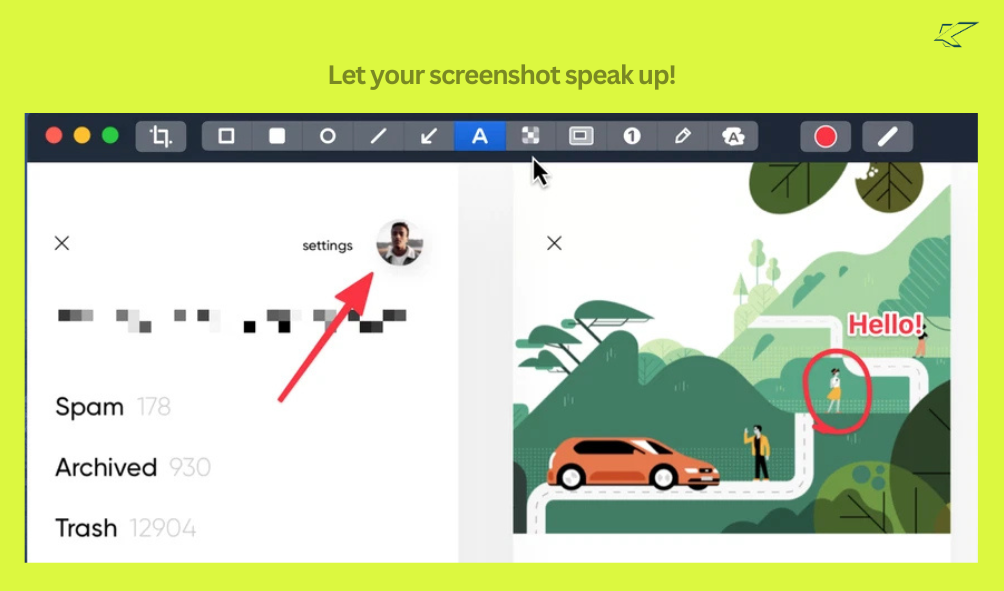
Cloud Sharing (The Feature Everyone on Reddit Actually Talks About)
Here’s what makes this different from just saving a screenshot to a folder:
You take a screenshot. Instantly you get a shareable link. You can password protect it. You can set it to delete itself after 7 days. You can add your company branding. You can share it with a team.
This is useful if you’re a freelancer sharing work with clients, a designer getting feedback, or anyone doing remote collaboration. It compresses a workflow that used to take 5 steps into basically 2 steps.
Screen Recording for Regular People (Not Video Professionals)
You don’t need a complex video editing software to record your screen and share it. QuickTime is included with Mac but it feels janky. Professional video tools like Final Cut Pro are overkill for a quick tutorial.
CleanShot X records your screen, the quality looks professional, the files aren’t huge, and if you need to trim a few seconds off the beginning or end, you can do that right in the app.
This matters if you’re creating online tutorials, showing clients how something works, or recording process documentation.
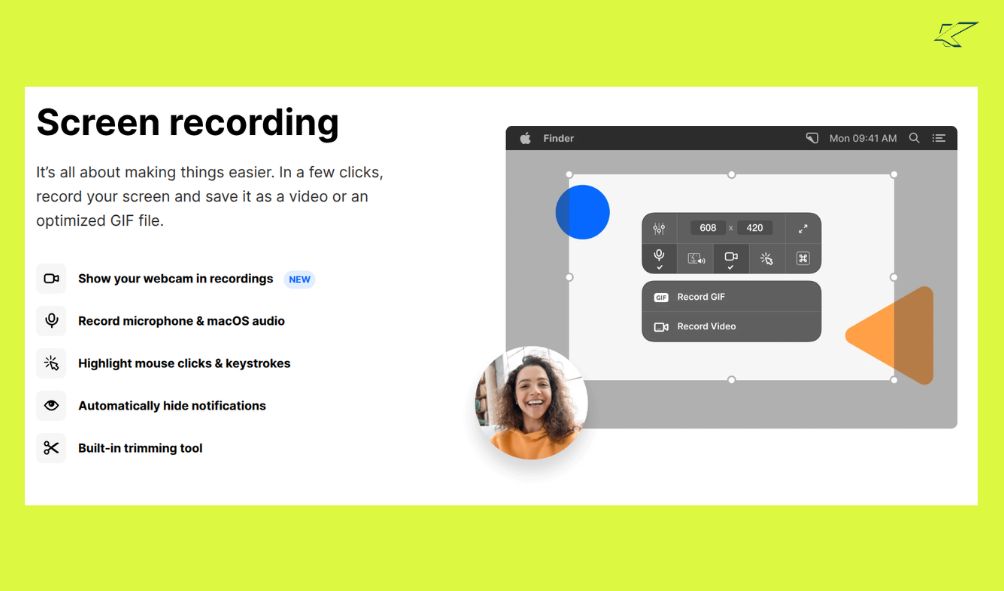
OCR Text Extraction (Grab Text Without Retyping)
You screenshot something that has text on it. Instead of retyping the text, CleanShot X can pull the text out for you using OCR technology.
This is helpful if you’re a writer doing research, a developer copying error messages, or someone pulling quotes from articles. It’s a small feature but genuinely useful.
Hide Desktop Icons During Recording (The Detail That Matters)
Before you record, you can have CleanShot X automatically hide all the icons, files, and folders on your desktop. Your recording looks clean and professional without you having to manually organize your desktop.
This is a small thing but shows the developers thought about actual use cases instead of just checking boxes.
How CleanShot X Compares to Tools You’ve Probably Heard Of
CleanShot X vs Shottr vs Snagit vs Lightshot (Quick Comparison)
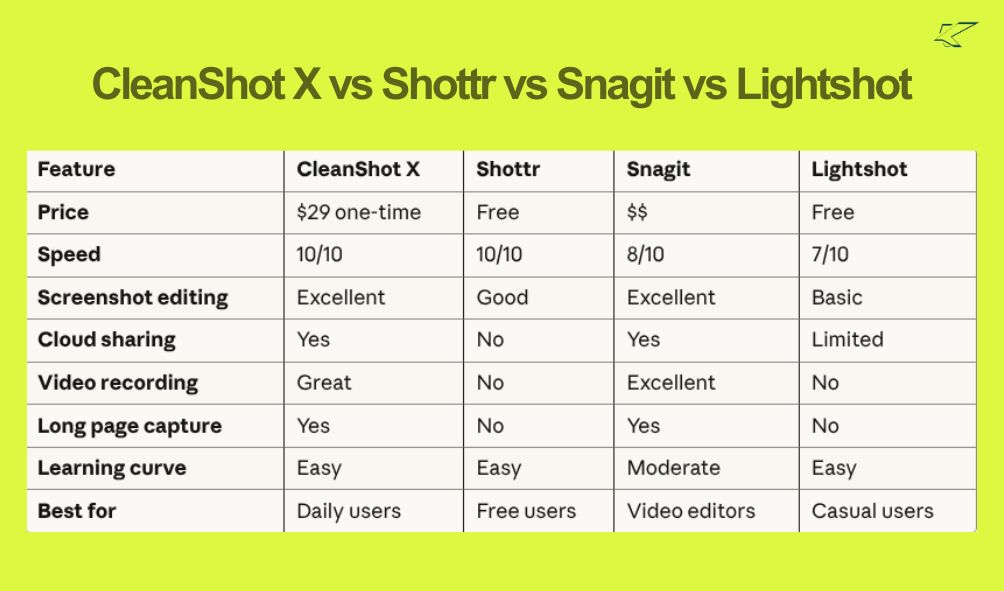
What This Actually Means
Using Shottr? It’s free and does basic screenshots well. If you barely take screenshots, stick with it.
Using Snagit? You’re probably doing professional video editing. Snagit has more video tools than CleanShot X, but costs way more and feels heavier.
Using Lightshot? You’re taking screenshots maybe once a week. That’s fine for your use case.
Thinking about CleanShot X? You’re taking 20+ screenshots daily and want something that feels fast and modern. You probably share most of those screenshots.
Honest take: If money is tight, use Shottr. If you take 30+ screenshots a day and share most of them, CleanShot X saves you time worth more than what you pay.
Other Tools Worth Knowing About
If you’re comparing different types of tools and processes in your workflow, we’ve written detailed comparisons on similar topics:
Read our RoboMotion RPA Review – If you’re automating repetitive tasks (which is different from screenshot tools but worth knowing about for workflow optimization)
Read our TidyCal vs Calendly Comparison – Similar honest comparison between two popular tools to show you how to evaluate software properly
Both reviews use the same approach: testing real tools, being honest about what’s good and bad, and telling you when the free option is actually fine.
Who This Is Actually For (And Who Should Skip It)
You Should Actually Buy This If:
You take screenshots or record videos multiple times every day for work. You make tutorials, documentation, or blog posts with visual examples. You share screenshots with clients or teammates regularly. You’re tired of fighting with free tools that slow you down. You want a tool that does one thing really well instead of a complicated mess.
You Probably Don’t Need This If:
You take screenshots maybe once a week. You’re working with an extremely tight budget. You use Windows most of the time. You just need the absolute basics and don’t care about convenience. You already have a screenshot workflow you’re happy with.
The Pricing (Quick Look, Then Go Check Yourself)
Pricing changes depending on where you buy it and what sales are happening. Sometimes they have Black Friday deals, sometimes AppSumo has deals, sometimes the regular price is what it is.
Instead of me trying to keep pricing updated when it changes, just check their actual pricing pages:
- Official website pricing: Cleanshot X for MacOS
- AppSumo deals: Click Here
They usually have a 30-day money-back guarantee no matter where you buy it. There’s no lifetime deal no matter what you see floating around online.
Check those links to see current pricing and any deals happening right now.
What I’d Actually Rate It (After 90 Days of Real Use)
Is it fast? 10/10 – Genuinely quick
Is it easy to use? 9/10 – Intuitive interface, you figure it out fast
Do the editing tools work well? 9/10 – Simple but effective
Is cloud sharing actually useful? 10/10 – Saves a surprising amount of time
Is the video quality good? 9/10 – Professional enough for tutorials and demos
Is it worth paying for? 8/10 – Depends on how much you use it
Overall? 9/10 – Really solid tool if you take screenshots constantly
FAQs:
Is this worth buying if I barely take screenshots?
No. Use Shottr. It’s free and does what you need.
Why did my videos get deleted?
Because the default setting is to auto-delete videos after 24 hours. You have to turn that off in settings. CleanShot X should make this more obvious.
Is there a lifetime deal or one-time payment for everything?
No. Pay once and you get 1 year of updates. After that you either renew or stop getting updates. That’s it.
Does it work on Windows?
Nope. Mac only.
Can I use it without paying for the cloud stuff? Y
eah, it works perfectly fine offline. The cloud sharing is optional.
Is it better than Snagit?
For most people and most use cases, yes. For serious video editing, Snagit’s better. Different tools for different jobs.
What if I don’t have a lot of money?
Use Shottr. Seriously, it’s really good and it costs nothing.
Does it work with multiple monitors?
Yeah, no problem.
Can I customize keyboard shortcuts? Y
eah, you can set them up however you want.
Final Thoughts
CleanShot X isn’t perfect. The auto-delete default is annoying. It costs money. It only works on Mac. Some features feel like overkill if you just need basic screenshots.
But here’s the thing: if you use a Mac and you take screenshots or record videos for work on a regular basis, this tool makes your actual life easier. Not slightly easier. Noticeably easier.
For me personally, taking 50+ screenshots a day for blog posts and documentation, CleanShot X saves me probably 30-40 minutes a week. That time adds up fast.
If you only take a few screenshots a month, just use Shottr. It’s free and does what you need.
If you take screenshots constantly and you’re frustrated with free tools, try it. The 30-day money-back guarantee means you can test it risk-free.
That’s it. That’s my honest review.

Hi, I am the founder of KlickTrust. I’m a digital strategist and builder with a deep passion for creating systems that help people build faster online. I started KlickTrust to save creators, freelancers, and entrepreneurs from wasting months starting from scratch by giving them access to practical, ready-to-use digital tools, templates, and automation systems that actually work in the real world.
At KlickTrust, I focus on speed, trust, and empowerment, so you can launch, grow, and scale with confidence.